
Fixing Unsupported Image Type Errors: A Dev's Guide

You're staring at a file upload that should be boring. A user picked a profile photo, the preview looks fine, and then your app throws unsupported image type. The annoying part is that the file often isn't “bad” in any visual sense, it's just failing somewhere in the chain from browser selection to backend parsing to a third-party API's rules.
That's why this error keeps wasting time. The filename can look right, the thumbnail can render, and the upload can still fail because the browser lied, the MIME type didn't match the bytes, or the receiving system only accepts a narrow set of formats. Google Merchant Center's guidance makes the core point clearly, unsupported image type errors are usually about format compatibility, not whether the image exists at all, and merchants are told to replace the image URL with a valid image type and verify the issue clears from the Needs attention page after reuploading corrected product data Google Merchant Center support.
Table of Contents
- Why This Simple Error Is So Deceptive
- Diagnosing the Root Cause Beyond the File Extension
- Client-Side Fixes for Reliable Image Uploads
- Server-Side Validation and Image Conversion
- Handling Image Types for AI and Third-Party APIs
- Conclusion and Best Practices Checklist
Why This Simple Error Is So Deceptive
A developer sees .jpg and expects a JPEG. A user sees a photo and expects it to upload. The system sees a file that may have the right extension but the wrong bytes, or a valid image that still fails the receiver's whitelist. That mismatch is why unsupported image type feels trivial in the UI and messy in production.
The extension is the least trustworthy signal
A filename only tells you what someone called the file. It does not prove the file header matches, and it definitely does not prove the target system accepts it. Google Merchant Center's support workflow treats the problem as a format validation issue, not a missing-file issue, which is the right mental model for debugging uploads Google Merchant Center support.
Practical rule: trust the bytes first, the extension second, and the user's intent last.
That is the part teams miss when they only check the upload dialog. An image can exist, render in a browser preview, and still be rejected by a backend that only accepts a narrow set of formats. Different systems enforce different rules, and the allowed list often changes depending on whether the file is going to a browser, storage layer, or API that processes images more strictly than your frontend does.
The chain of custody matters
The file starts in a browser, passes through a form or API, lands on your server, and may then get forwarded to storage, a media pipeline, or an external API. Any one of those hops can reject it. Portkey's image upload guidance shows the kind of tight constraints modern systems impose, supported formats are often limited, and file-size checks can be part of the rejection path Portkey error library.
That is why this error is deceptive. It is not one bug, it is a category of failures that all collapse into the same message. A frontend preview can look fine while the backend rejects the payload, or the backend can accept the upload while a later processor refuses to open it. If you treat it like a single file conversion issue, you fix the symptom once and keep rediscovering the cause in a different layer of the stack.
Diagnosing the Root Cause Beyond the File Extension
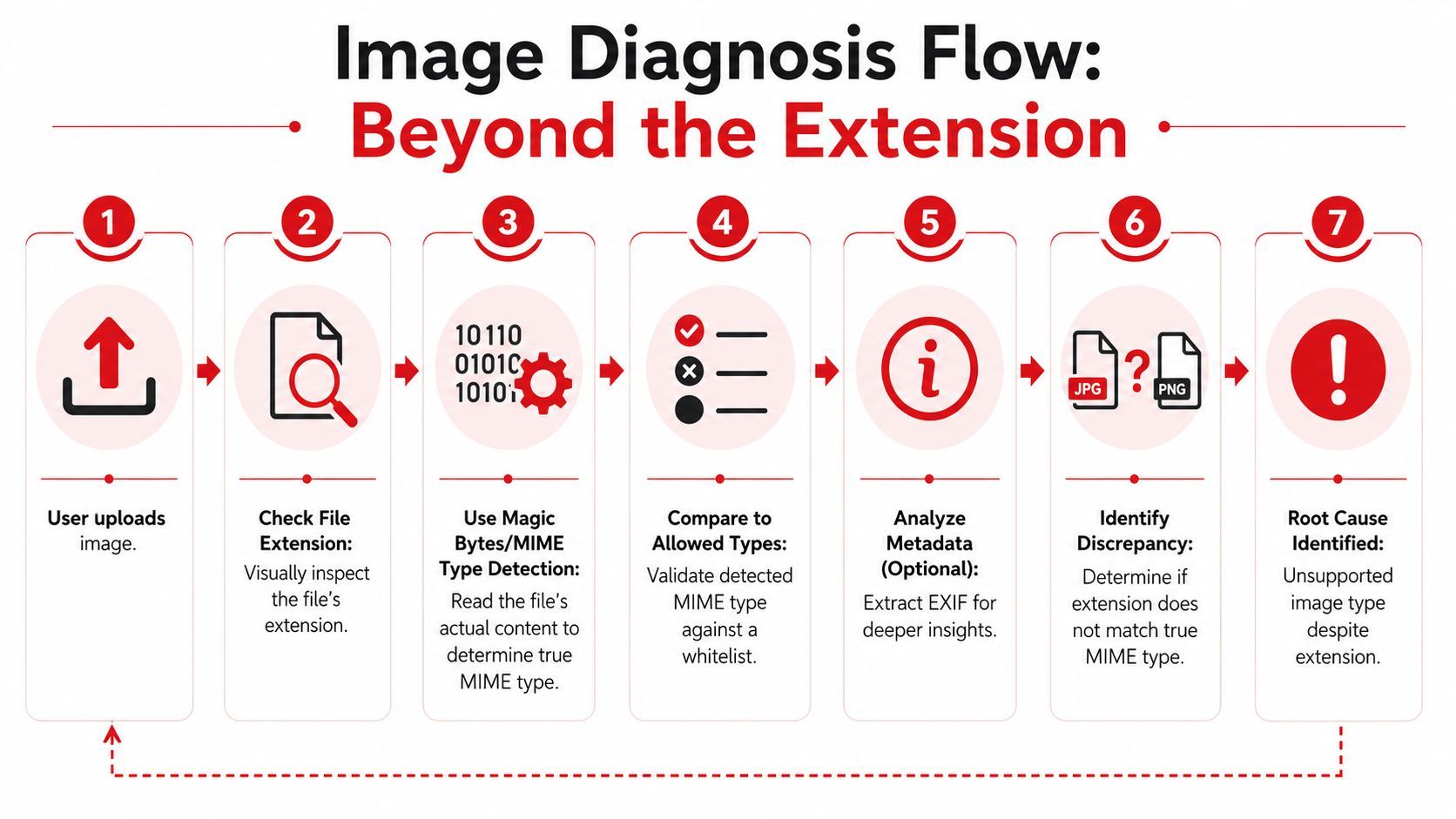
Start by checking the file name, but don't stop there. A .jpg extension can hide a PNG, a WebP file can be mislabeled, and some upload flows normalize names while leaving the underlying bytes untouched. The goal is to identify what the file is, what the browser claims it is, and what the server thinks it received.
Read the file as bytes, not as a label
The fastest reliable check is to inspect the file's magic bytes, the first few bytes that identify the format. On a local machine, the file command is often enough to tell you whether a file is really JPEG, PNG, GIF, or something else. Online validators can help too, but the key habit is the same, verify the content signature instead of trusting the name.
A useful workflow looks like this:
- Inspect the extension and make sure it matches the intended format.
- Check the actual MIME type reported by the browser or client code.
- Inspect the file header with a byte-level tool like
file. - Compare against the allowed list in the receiving system.
- Look for metadata clues if the file still seems suspicious.
- Find the mismatch between label and content.
- Treat the mismatch as the root cause, not the filename.
Use browser tools to see what was sent
Browser developer tools help when the upload fails before it reaches your backend. Look at the network request and verify the Content-Type that the browser sent. If you're using fetch or FormData, the browser usually sets the multipart boundaries for you, but the file part still carries its own metadata, and that metadata may not agree with the bytes.
The browser can be honest about the request and still carry the wrong file semantics.
That distinction matters when you debug server-side rejections. The request may arrive intact, but your backend may parse the image by magic number and reject it because the signature doesn't match the declared MIME type. Or the browser may send a file that's technically valid, but the receiving API only accepts a narrower list of formats.
Common image formats at a glance
The table above reflects the nature of modern ingestion pipelines, they prefer a small number of dependable formats rather than trying to support every historical image type. That's why a clear diagnosis is more valuable than guessing. Once you know whether the problem is a mislabeled file, a MIME mismatch, or a format whitelist, the fix gets much simpler.
Client-Side Fixes for Reliable Image Uploads
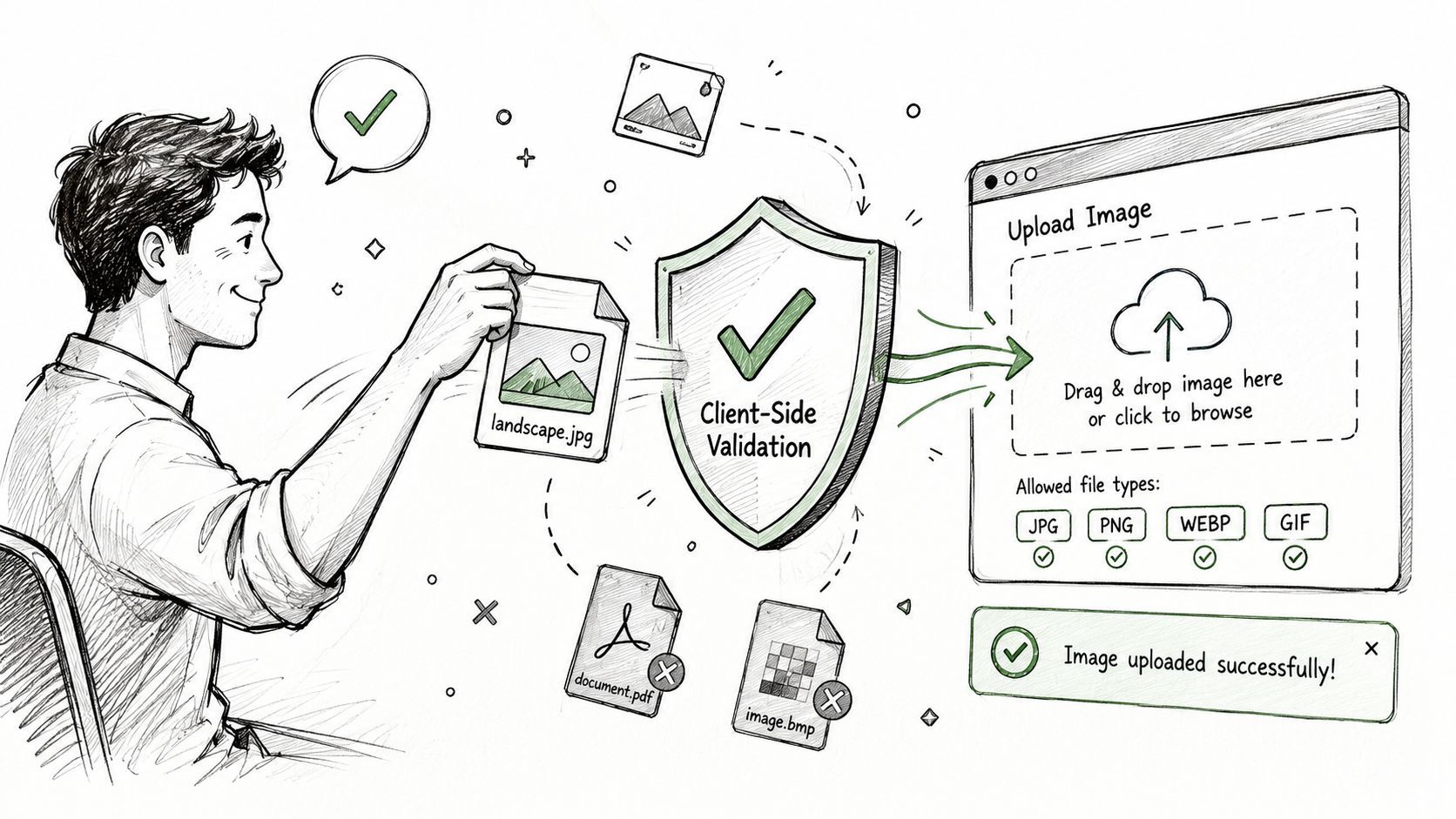
The browser should catch obvious mistakes before they hit your server. That does not replace backend validation, but it cuts down on wasted requests and gives the user a clear correction before they wait on a failed upload. A good client-side flow is simple, strict, and explicit about what it accepts.
Use the file input as a hint, not a guarantee
The accept attribute helps because it nudges users toward the right file picker filters, but it does not enforce anything. A user can still drag in the wrong file, rename something locally, or paste content from another source. Treat accept as UX, not security.
A practical baseline looks like this:
<input type="file" accept="image/png,image/jpeg,image/webp,image/gif" />That tells the picker what you prefer, and it reduces accidental misuse. It does not prove the file is valid, so the next step is still to inspect the File object.
Validate type and size in JavaScript
Read the file metadata before upload and compare it against your whitelist. If the browser reports an unexpected type, block the submit and explain the problem in plain language. If the file size is too large for your app's own rules, stop it early and let the user choose another image before the request ever leaves the page.
const allowedTypes = new Set([
  "image/png",
  "image/jpeg",
  "image/webp",
  "image/gif",
]);

function validateImageFile(file) {
  if (!allowedTypes.has(file.type)) {
    return "Please upload a PNG, JPEG, WebP, or GIF image.";
  }

  return null;
}

document.querySelector("#image").addEventListener("change", (event) => {
  const file = event.target.files?.[0];
  if (!file) return;

  const error = validateImageFile(file);
  if (error) {
    alert(error);
    event.target.value = "";
  }
});
This check is about speed and clarity. The user gets feedback before any network request, and you avoid sending obviously incompatible files into a backend that will reject them anyway. It also keeps the upload flow aligned with the formats your API can process.
Show the reason, not just the rejection
The best error messages tell users what to do next. “Unsupported image type” is technically correct and practically useless. “Please upload a PNG, JPEG, WebP, or GIF image” gives the user a path forward, and if you support drag-and-drop, the same message should appear there too.
When the browser catches the issue cleanly, your backend gets less junk traffic and your support inbox gets fewer vague complaints. Client-side validation improves the experience, but it should always be backed by stricter server checks.
Server-Side Validation and Image Conversion
A file can look fine in the browser and still fail the moment it reaches your backend. A renamed upload, a proxy that rewrites headers, or a client that skips validation can all make a bad file look acceptable until the server inspects the actual bytes. That is why the backend has to revalidate every image before it enters storage or a downstream pipeline.
Verify the payload on the server
Server-side checks should inspect the MIME type and, when possible, the file signature. In Node.js, libraries such as file-type are commonly used to detect what the file is from its content. In Python, python-magic is a common choice for the same job. In Go, teams often use the standard library plus content sniffing or a dedicated MIME detector to confirm the upload.
The policy matters more than the language. Define a whitelist for the formats your app accepts, then reject everything else before it reaches disk, object storage, or image processing jobs.
Practical rule: reject by default, allow only the formats your pipeline can actually handle.
That keeps failures close to the boundary where they start, which makes debugging much easier. It also reduces security risk and keeps bad uploads from wasting compute in later steps.
Convert accepted images into a standard format
Once an image passes validation, convert it into one standard format for internal use. A common pattern is to normalize uploads into WebP or JPEG, depending on how you serve and store images. In Node.js, Sharp is a strong choice. In Python, Pillow is the usual workhorse. The goal is to avoid carrying a mix of source formats through the rest of the application.
This matters for avatars, product images, and gallery thumbnails. A consistent output format makes caching, resizing, and preview generation simpler. It also lowers the chance that a storage layer, rendering service, or later processing step rejects a file you already accepted.
Treat conversion as part of the contract
As noted earlier, external systems often accept only a limited set of raster formats, and file-size limits can also trigger rejection. Conversion is part of the contract between your app and every consumer of that image.
If you support uploads from cameras, phones, or design tools, conversion matters even more. Older or less common formats like TIFF, BMP, or HEIC often need to be normalized before upload. The more work you do at the backend boundary, the fewer surprises show up later.
Handling Image Types for AI and Third-Party APIs
A file can pass your front-end preview and still fail the moment it hits an AI or third-party endpoint. Those services usually check the exact format, size, and payload shape, and they often reject files that looked fine in the browser. In practice, the break happens after the upload flow already appears to work.
Match the API's accepted formats exactly
Assume the external service has a narrow whitelist unless its docs say otherwise. For AI-related upload guidance summarized by Portkey, the supported formats are PNG, JPEG, GIF, and WebP, and files often need to stay under 20 MB Portkey error library. A file that works inside your app can still fail as soon as you forward it to a model or another processor.
Normalize before the request leaves your system. Convert TIFF, BMP, or HEIC before upload. If the API only accepts raster formats, do not send SVG unless the provider explicitly says it is supported. The external service is the source of truth, not your media library.
Build a clean handoff to the external service
Keep one internal image pipeline, then produce an API-ready variant as the last step. That usually means resizing, converting, and encoding the payload in the exact shape the external API expects. If the API wants base64, generate that payload after validation and conversion, not before. Otherwise, you end up debugging encoding problems and format problems at the same time.
When a request gets rejected, log the actual reason and the source format. That makes it easier to spot patterns like HEIC from iPhones failing repeatedly, or SVG badges not working in a specific model endpoint. The logs should show whether the failure came from format, size, or a mismatch between declared and detected content.
Use centralized rules when multiple services depend on the same assets
If your app sends images to more than one external system, the acceptance rules stop being a one-off decision. One API may accept WebP, another may want JPEG only, and a third may reject the same file because of size or content handling. A centralized rules layer keeps those constraints from spreading through your codebase as scattered conditionals.
Validate once, convert once, then route to the destination with a payload adapted for that service's documented requirements. The fewer places you duplicate image logic, the fewer surprise rejections you will chase later.
Conclusion and Best Practices Checklist
A file upload fails fast when any layer makes a different assumption about the image. The browser can surface the wrong option, the backend can trust the extension too much, and an external API can reject a payload that looked fine in your app. Fixing unsupported image type means tightening the whole path, from selection in the browser to validation on the server to the final handoff to third-party systems.
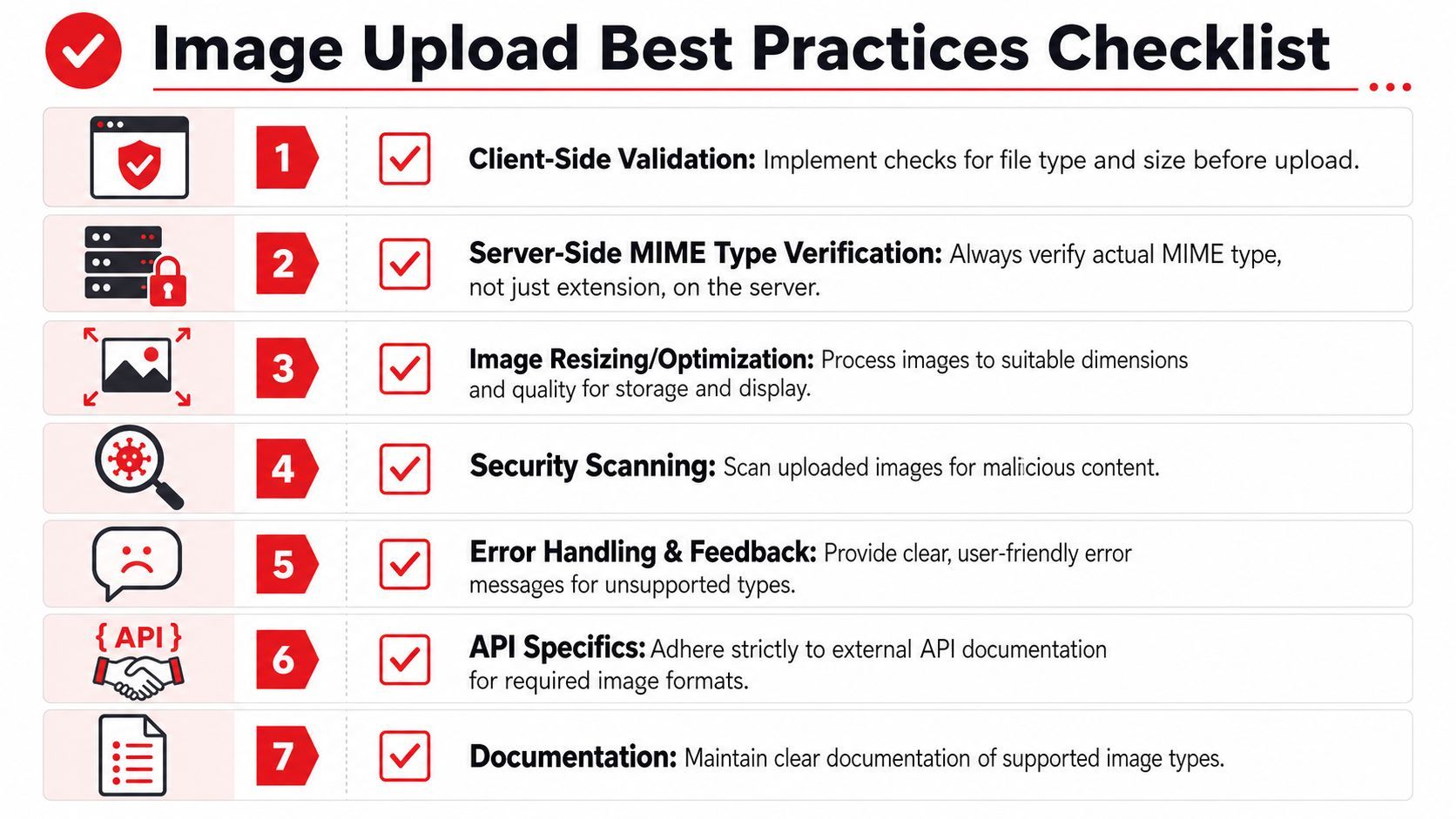
A quick checklist for the next upload flow
- Client-side validation: Use
acceptto guide selection, then validateFile.typebefore upload. - Server-side MIME checks: Reinspect the actual file content on the backend, not just the extension.
- Standardize formats: Convert accepted uploads into one or two predictable internal formats.
- Handle errors clearly: Tell users what to upload next, not just that the file failed.
- Respect API limits: Match the exact formats and payload rules of each external service.
- Log rejections: Capture the reason, the source format, and the destination that rejected it.
- Document the whitelist: Keep supported image types visible to developers and product teams.
Treat the upload boundary like an API contract. That matters because a single unsupported file can stop a listing, block a workflow, or break a downstream integration until the asset is replaced with a compliant format. Google Merchant Center's support guidance shows how strict these checks can be in practice, so the safest approach is to make the accepted formats explicit and enforce them before the file leaves your app Google Merchant Center support.
If you build image uploads, AI image handling, or multiple third-party media integrations, keep the validation rules in one place and make them visible to the whole team. A unified layer like Supagen can help you manage those rules, route image workflows consistently, and debug rejection paths without scattering logic across your app.