
Python Get User Input

You're probably here because a tiny Python script just turned into a real tool.
At first, getting user input feels easy. You write name = input("Your name: "), press Run, type a value, and the script responds. That's enough for a toy program, a quick automation, or a beginner exercise. Then the requirements change. You need a number instead of text. You need to reject blank input. You need to ask for a password without showing it on screen. You need the script to run in a terminal today, but also inside a CI job, notebook, or container tomorrow.
That's where most basic tutorials stop being useful.
In practice, Python get user input isn't one technique. It's a set of choices. input() works for direct prompts in a terminal. getpass works when the data is sensitive. argparse works when the script should behave like a proper CLI tool. sys.stdin works when another program feeds data into yours. The skill isn't memorizing syntax. It's knowing which input method fits the job, and how to keep your code from failing the moment a user types something unexpected.
Table of Contents
- Introduction The Full Spectrum of Python User Input
- Getting Started with the input() Function
- From Fragile to Robust Validating User Input
- Building Professional Tools with argparse and getpass
- Handling Advanced Input Scenarios
- Conclusion Best Practices and Common Pitfalls
Introduction The Full Spectrum of Python User Input
Most developers meet Python input through a tiny interaction. Ask for a name. Print a greeting. Done.
That mental model holds up for about an hour.
The moment you build something for another person, input stops being trivial. A founder testing a script types nothing and presses Enter. A teammate enters "ten" where your code expects 10. A deployment job hangs forever because your script is waiting on a prompt that nobody can answer. A password gets echoed to the terminal because it was collected with the wrong function.
Those aren't edge cases. They're normal cases.
Practical rule: The right input method depends on who or what is providing the value. A human at a keyboard needs one interface. An automated system needs another.
Good Python code treats user input as part of the product experience. A rough script says, “Enter age,” then crashes on bad input. A better script explains what it expects, validates it, and keeps going. A professional tool doesn't even ask interactively when flags or piped data make more sense.
That's the progression that matters. Start with input(). Learn what it returns. Add conversion. Add validation. Move secrets to getpass. Move repeatable workflows to argparse. Move automation paths to sys.stdin or environment variables when the terminal prompt becomes a liability.
If you've only seen the beginner version, that's fine. The beginner version is real. It's just incomplete.
Getting Started with the input() Function
The foundation of Python user input is still input(). It's simple on purpose. Python pauses execution, shows your prompt, waits for the user to type something, and returns the result.
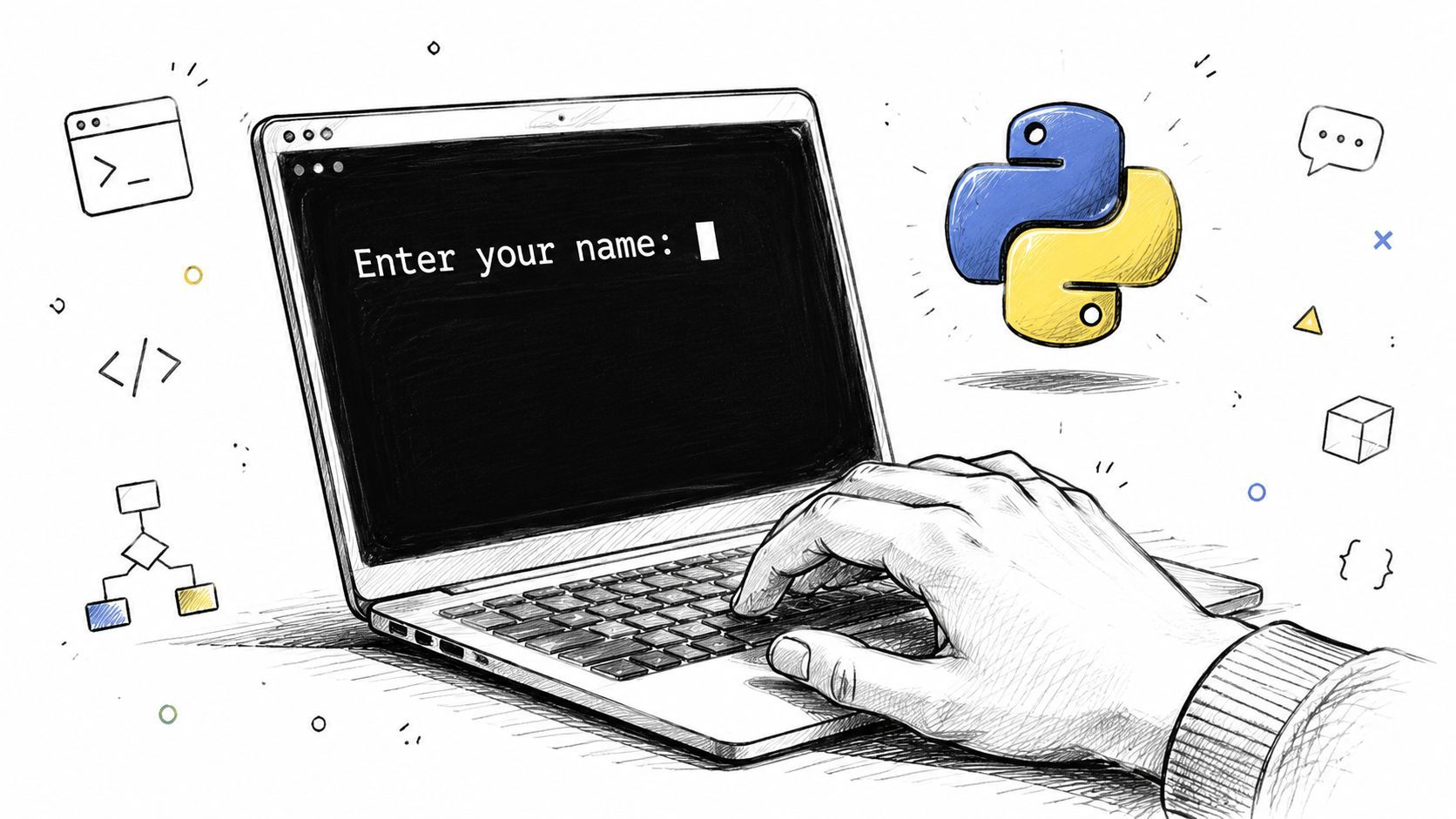
Educational references consistently describe the same behavior: input() pauses program execution and returns the entered value as a string, and numeric input needs explicit conversion with int() or float() for arithmetic according to GeeksforGeeks on taking input in Python. That consistency is one reason input() remains the default teaching example.
How input() actually behaves
Start with the simplest case:
name = input("Enter your name: ")
print(f"Hello, {name}")
This works because names are naturally text. No conversion needed.
Now look at a numeric example:
age = input("Enter your age: ")
print(age + 1)
That fails because age is still a string. Python doesn't assume the text "25" should become the integer 25. You have to say it explicitly.
age = int(input("Enter your age: "))
print(age + 1)
That line is common because it's compact, but the important part is the sequence:
- Prompt the user.
- Capture the response.
- Convert it to the type you need.
That pattern shows up everywhere in beginner Python because it maps cleanly to how people think. Ask a question, store the answer, then use it.
The prompt capture convert pattern
Keep the pieces separate when you're learning or debugging. It makes mistakes obvious.
raw_age = input("Enter your age: ")
age = int(raw_age)
print(f"Next year you will be {age + 1}")
For decimal values, use float():
raw_height = input("Enter your height in meters: ")
height = float(raw_height)
print(f"Recorded height: {height}")
When I review junior code, one recurring issue is that everything gets compressed into one line too early. One-liners are fine once the behavior is obvious. During development, split the steps so you can inspect the raw value.
Here's a quick comparison:
A short walkthrough helps if you want to see terminal behavior in action.
input() is easy to start with because it has very little surface area. That same simplicity is why you need extra code for validation and automation later.A quick note on Python 2
If you touch legacy code, you may see raw_input(). In Python 3, input() is the standard function beginners learn and use. In older Python 2 code, raw_input() filled the role that input() now fills in modern Python.
That historical detail matters mainly when you inherit an old script or read dated examples online. For current work, stick with Python 3 and input().
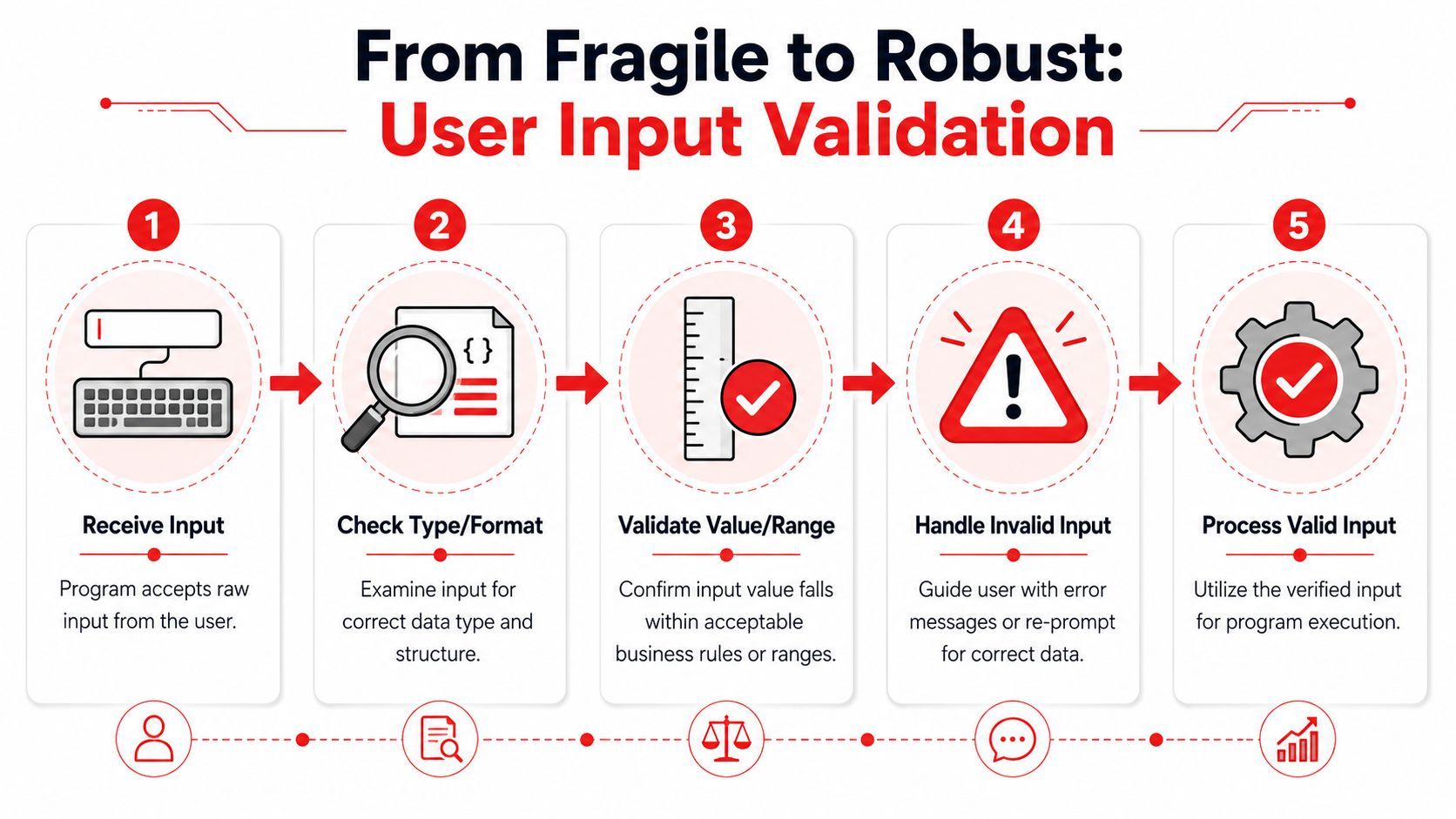
From Fragile to Robust Validating User Input
The fastest way to make a Python script feel amateur is to let it crash on ordinary mistakes.
A lot of beginner code looks like this:
age = int(input("Enter your age: "))It works only if the user behaves exactly as expected. That's not a safe assumption. Users press Enter on an empty prompt. They type spaces. They enter words where your code expects numbers. They give values that are technically valid but unacceptable for your program.
A commonly underserved part of Python input tutorials is validation beyond the basic input() plus conversion pattern, especially handling empty strings and non-numeric text with try-except, as noted in this teaching resource on user input.
Why int(input()) breaks in real use
This code is better than nothing:
try:
    age = int(input("Enter your age: "))
except ValueError:
    print("Please enter a valid whole number.")
It catches bad input, which is progress. But it still leaves the user stuck. They see an error, and the script often ends without giving them another chance.
That's a poor interaction model for command-line tools. If the mistake is recoverable, your program should recover.
A better pattern keeps asking until the input passes validation.
The loop that users actually need
This version handles mistakes without blowing up the program:
while True:
    raw = input("Enter your age: ").strip()

    try:
        age = int(raw)
        break
    except ValueError:
        print("Please enter a valid whole number.")
That's the baseline pattern I recommend for terminal prompts. A loop plus try-except gives you three benefits:
- Resilience: bad input doesn't terminate the script.
- Clarity: the user gets a specific correction.
- Control: you decide when the loop ends.
Now make the validation stricter. If you need a rating from 1 to 5, conversion alone isn't enough:
while True:
    raw = input("Rate the service from 1 to 5: ").strip()

    try:
        rating = int(raw)
    except ValueError:
        print("Enter a whole number.")
        continue

    if 1 <= rating <= 5:
        break

    print("Rating must be between 1 and 5.")
That distinction matters. Parsing checks whether the input can become the type you want. Validation checks whether the value makes sense for the business rule.
Good validation tells the user what went wrong and gives them a path to fix it immediately.
Reusable validation helpers
Once you repeat the same pattern twice, wrap it in a function.
Here's a practical helper for integers with optional limits:
def get_int(prompt, min_value=None, max_value=None):
    while True:
        raw = input(prompt).strip()

        if raw == "":
            print("Input can't be empty.")
            continue

        try:
            value = int(raw)
        except ValueError:
            print("Please enter a valid whole number.")
            continue

        if min_value is not None and value < min_value:
            print(f"Value must be at least {min_value}.")
            continue

        if max_value is not None and value > max_value:
            print(f"Value must be at most {max_value}.")
            continue

        return value
Usage stays clean:
age = get_int("Enter your age: ", min_value=0)
rating = get_int("Rate from 1 to 5: ", min_value=1, max_value=5)
For text fields, the validation rules change:
def get_non_empty_text(prompt):
    while True:
        value = input(prompt).strip()
        if value:
            return value
        print("Input can't be blank.")
And for fixed choices, normalize first:
def get_yes_no(prompt):
    while True:
        value = input(prompt).strip().lower()
        if value in {"yes", "y"}:
            return True
        if value in {"no", "n"}:
            return False
        print("Please enter yes or no.")
A simple table helps decide what to validate:
The big shift is mindset. Don't ask, “Can this input be converted?” Ask, “Can a real user complete this step without frustration?”
Building Professional Tools with argparse and getpass
Interactive prompts are fine for scripts you run manually. They're a bad fit when the input is sensitive or when the script should be automated.
That's where getpass and argparse come in.
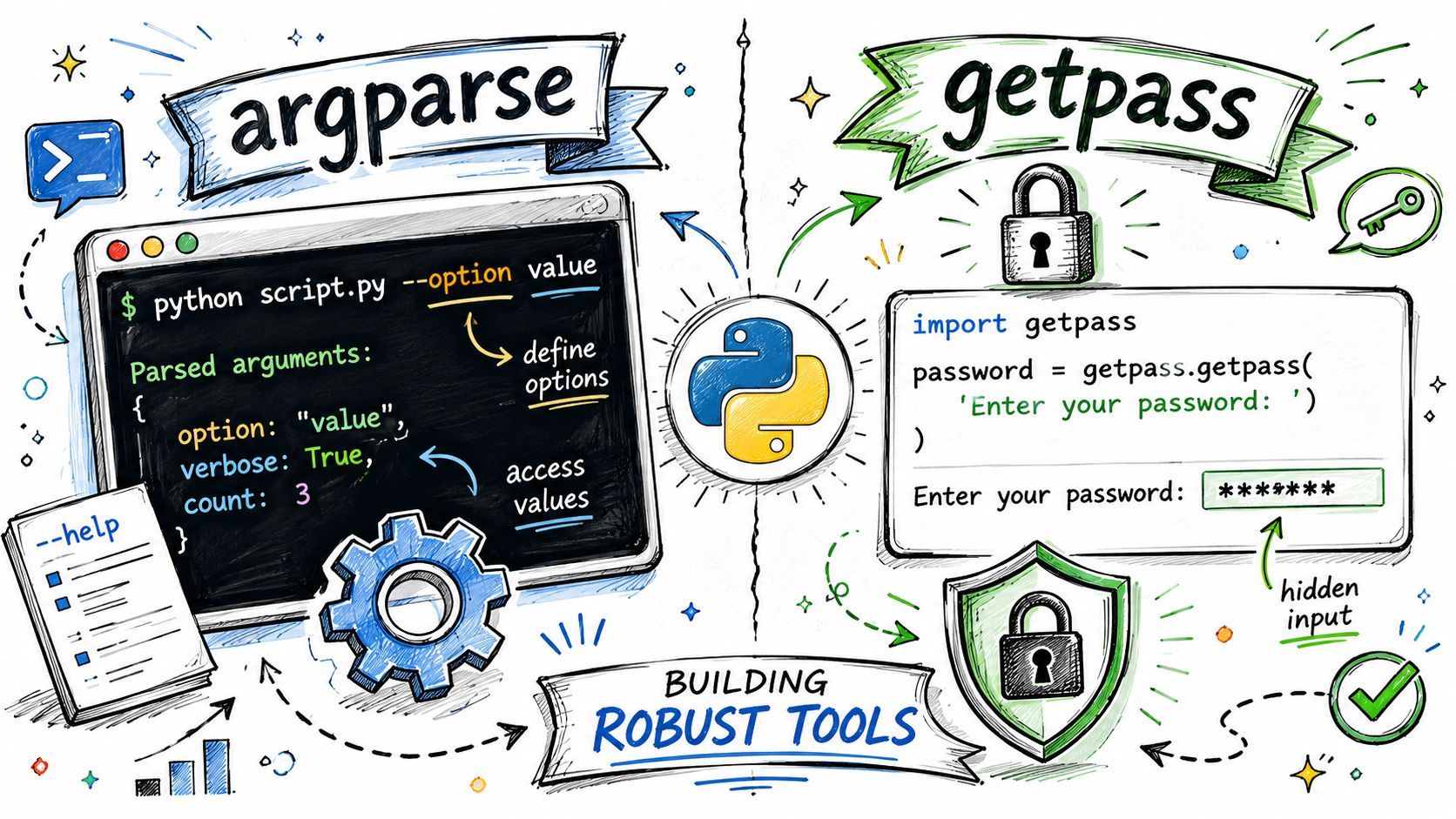
A major gap in beginner input coverage is how Python input behaves in non-interactive workflows, and when alternatives like command-line arguments are better suited for production-style scripts, as discussed in DigitalOcean's guide to receiving user input in Python.
Use getpass for secrets
Never collect passwords, API keys, or other secrets with plain input() if you can avoid it. The problem is simple. input() echoes what the user types to the screen.
Use getpass.getpass() instead:
from getpass import getpass

password = getpass("Enter your password: ")
print("Password received.")
The typed characters won't be displayed in the terminal. That's the basic security improvement you want for secret entry.
A few practical notes:
- Use it for one-time terminal entry: password prompts, tokens, private passphrases.
- Don't print the value back out: masking input is pointless if you log it later.
- Prefer environment variables for automation: secret prompts don't work well in unattended jobs.
If your script may run both interactively and non-interactively, allow multiple input paths. For example, accept a token from a flag or environment variable first, then fall back to getpass only when a human is present.
Use argparse for automation friendly scripts
argparse turns a script into a command-line tool with defined arguments, optional flags, and automatic help text.
Here's a compact example:
import argparse

parser = argparse.ArgumentParser(description="Greet a user.")
parser.add_argument("name", help="Name of the user")
parser.add_argument("--uppercase", action="store_true", help="Print in uppercase")

args = parser.parse_args()

message = f"Hello, {args.name}"
if args.uppercase:
    message = message.upper()

print(message)
Run it like this:
python app.py Alicepython app.py Alice --uppercase
This design is stronger than prompting for everything interactively because the command itself documents the input. It also works in shell scripts, scheduled jobs, and reproducible workflows.
Field advice: If you expect a script to run more than once in the same way, prefer arguments over prompts.
When prompts lose to flags
Use interactive prompts when the user doesn't know the answer until runtime, or when the flow is conversational. Use CLI arguments when the values are part of the command itself.
A quick comparison:
A realistic CLI often combines both styles. For example:
import argparse
from getpass import getpass

parser = argparse.ArgumentParser(description="Connect to a service.")
parser.add_argument("--username", required=True)
parser.add_argument("--password")

args = parser.parse_args()

password = args.password if args.password else getpass("Password: ")

print(f"Connecting as {args.username}")
That pattern gives automation a direct path while keeping local terminal use comfortable.
Handling Advanced Input Scenarios
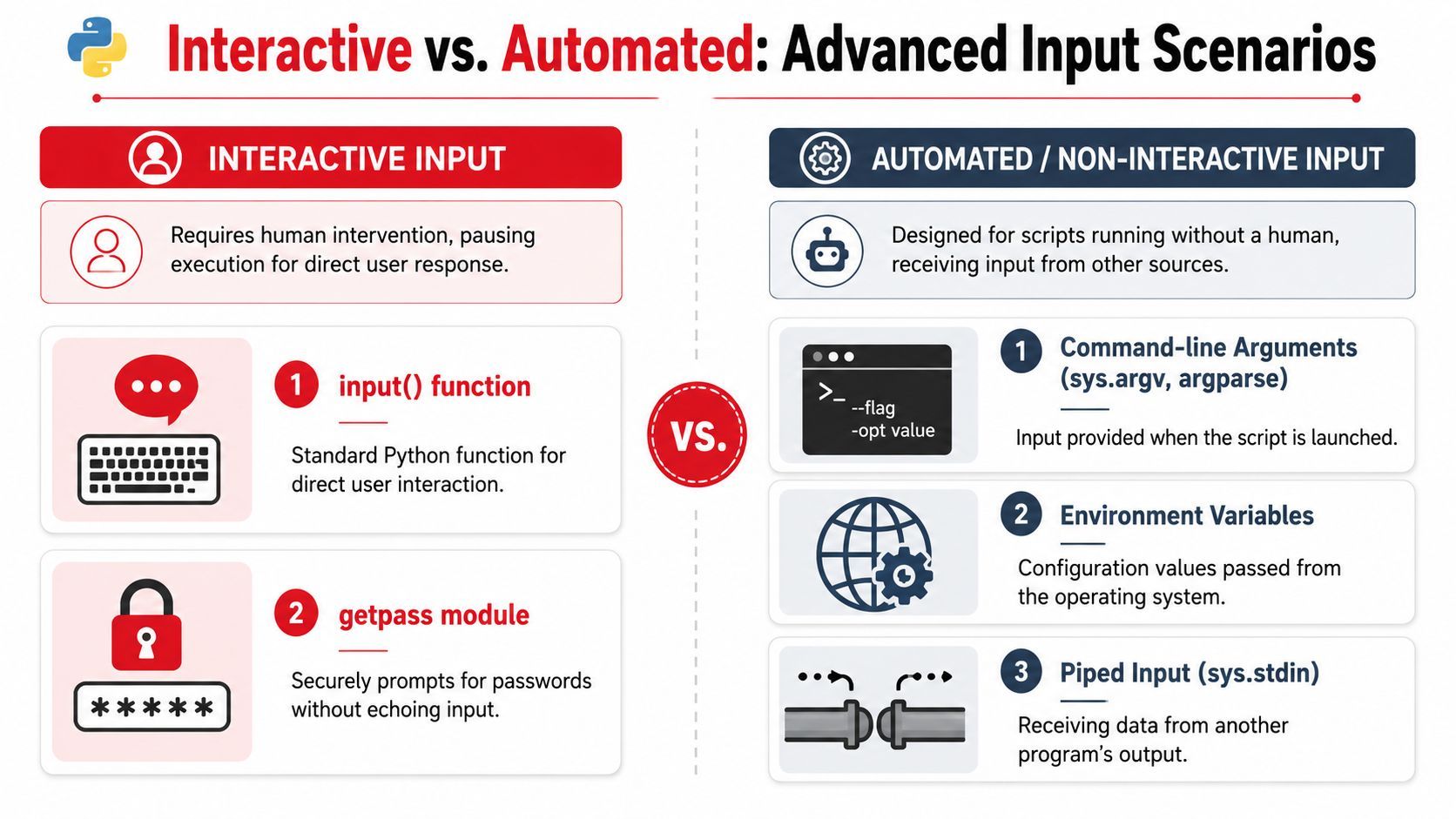
The more your program participates in larger systems, the less useful input() becomes.
It's still the standard teaching example, and Python tutorials from earlier years through modern materials keep describing the same core rules: input() pauses execution, returns a string, and requires explicit conversion for math, which has made it a durable teaching tool according to Scientifically Sound's discussion of the Python input function. But teaching defaults aren't always production defaults.
Reading piped data with sys.stdin
If another command sends data into your script, use sys.stdin.
import sys

data = sys.stdin.read()
print("Received:")
print(data)
That supports workflows like piping text from one program into another. Instead of asking a person to paste content manually, your script reads incoming data directly.
The role of your program changes significantly. No longer an isolated terminal interaction, it becomes part of a toolchain. This design principle underpins many useful command-line utilities.
A few practical distinctions:
input()reads one interactive line from a user prompt.sys.stdin.read()reads incoming stream data, often until end of input.sys.stdin.readline()is useful when you want line-by-line processing.
Why input() is wrong for long running systems
input() blocks execution. That's acceptable for a tiny script. It's a problem in long-running software that needs to keep doing other work.
A game loop can't freeze waiting for terminal text. A server process can't stop everything because one prompt is unresolved. An automated job inside a container may never receive a keyboard response at all.
That blocking behavior is one of the main reasons developers move to other interfaces:
- Command-line arguments for launch-time configuration
- Environment variables for deployment-specific settings
- Message queues, APIs, or event systems for running services
- Files or piped streams for batch input
This is less about Python syntax and more about system design. A terminal prompt assumes a human is present right now. Many modern runtimes don't make that assumption.
The moment your script may run unattended, every interactive prompt becomes a deployment risk.
Terminal input versus GUI and web input
Desktop and web applications still get user input, just not through input().
GUI frameworks like Tkinter or PyQt work through widgets and events. A text box collects the value, and your code responds when the user clicks a button or triggers an event. Web frameworks like Flask or Django receive form fields, JSON payloads, query parameters, cookies, and uploaded files through HTTP requests.
That's the same core idea in a different delivery model. Input still needs parsing, validation, and error messages. The transport changed. The engineering discipline didn't.
Here's a practical decision guide:
If you remember one thing from advanced Python get user input work, make it this: choose the interface based on execution context, not habit.
Conclusion Best Practices and Common Pitfalls
The cleanest way to think about Python input is by matching the mechanism to the job.
Use input() when a person is sitting at a terminal and the conversation is simple. Add validation the moment the value matters. Use getpass() for secrets. Use argparse when the script should be repeatable, scriptable, or automation-friendly. Use sys.stdin when your program is part of a pipeline. Use environment variables when configuration belongs to the runtime rather than the user prompt.
A few pitfalls deserve blunt warnings:
- Never use
eval(input())for general user input. It turns typed text into executable Python code. That's not convenience. It's a serious security mistake. - Don't trust conversion alone. A value can parse correctly and still be invalid for your rules.
- Don't prompt in unattended environments. Hanging forever is a failure mode.
- Don't echo secrets. Use
getpassor a non-interactive secret path. - Don't ignore text handling issues. Users may enter names, paths, or content with non-ASCII characters. Keep your code and environment ready for that reality.
Professional input handling isn't flashy. It shows up as code that doesn't crash, interfaces that make sense, and tools that work both for humans and for automation.
That's the standard worth aiming for.
If you're building AI products and need a cleaner production layer behind your prompts, model routing, and observability, Supagen is worth a look. It gives teams one backend for managing prompts, providers, logs, costs, and agent connections without hardcoding those concerns into the app itself.